I can barely hear the caller on my iPhone 12 Pro Max
When a call comes in, I can barely hear the caller. How do
you fix it? iPhone 12 pro max.
[Re-Titled by Moderator]
iPhone 12 Pro Max, iOS 16
When a call comes in, I can barely hear the caller. How do
you fix it? iPhone 12 pro max.
[Re-Titled by Moderator]
iPhone 12 Pro Max, iOS 16
Hi XmaddogX,
The first thing you should try is restarting your iPhone.Although simple, this step can help correct some unexpected issues. It's also a good idea to make sure your iPhone is running the latest iOS version, iOS 16, since updating to the latest software can help with overall performance: Apple security updates. If an update is available, be sure to create a backup before installing it.
If the issue persists after trying those steps, this resource has some steps that could be helpful: If you hear no sound or distorted sound from your iPhone, iPad, or iPod touch speaker.
Follow these steps
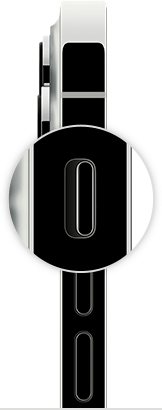
1. If your device has a Ring/Silent switch, move the switch forward—toward the device's display—so that orange isn't showing. If you're using an iPad, you can also swipe down from the top-right corner to open Control Center and make sure that Silent Mode is off.
2. Open Settings > Focus > Do Not Disturb and make sure that Do Not Disturb is off.
Contact Apple Support
If you checked the sound settings and your device still has sound issues, contact Apple Support to discuss service options.
If you want to try more steps on your own
If you prefer, here are some more steps you can try on your own. After following these steps, you might still need to contact Apple Support to discuss service options.
1. Remove all screen protectors, films, or cases from your device.
2. Check the speaker opening to see if it's blocked or dirty. On iPhone only, make sure that the receiver isn't blocked or dirty.
3. If necessary, clean the speaker or receiver opening with a small, soft-bristled brush. Make sure that the brush is clean and dry.
4. Go to Settings > Sounds (or Settings > Sounds & Haptics), and drag the Ringer and Alerts slider back and forth a few times. If you don't hear any sound, or if your speaker button on the Ringer and Alerts slider is dimmed, your speaker might need service.
5. If you hear sound, try making a call with your iPhone and turn on speakerphone. On iPad or iPod touch, make a FaceTime call. If you still can't hear, or hear static or crackling, then your network or reception could be the issue. Try to call again later, or from a different location.
Best regards.
Hi XmaddogX,
The first thing you should try is restarting your iPhone.Although simple, this step can help correct some unexpected issues. It's also a good idea to make sure your iPhone is running the latest iOS version, iOS 16, since updating to the latest software can help with overall performance: Apple security updates. If an update is available, be sure to create a backup before installing it.
If the issue persists after trying those steps, this resource has some steps that could be helpful: If you hear no sound or distorted sound from your iPhone, iPad, or iPod touch speaker.
Follow these steps
1. If your device has a Ring/Silent switch, move the switch forward—toward the device's display—so that orange isn't showing. If you're using an iPad, you can also swipe down from the top-right corner to open Control Center and make sure that Silent Mode is off.
2. Open Settings > Focus > Do Not Disturb and make sure that Do Not Disturb is off.
Contact Apple Support
If you checked the sound settings and your device still has sound issues, contact Apple Support to discuss service options.
If you want to try more steps on your own
If you prefer, here are some more steps you can try on your own. After following these steps, you might still need to contact Apple Support to discuss service options.
1. Remove all screen protectors, films, or cases from your device.
2. Check the speaker opening to see if it's blocked or dirty. On iPhone only, make sure that the receiver isn't blocked or dirty.
3. If necessary, clean the speaker or receiver opening with a small, soft-bristled brush. Make sure that the brush is clean and dry.
4. Go to Settings > Sounds (or Settings > Sounds & Haptics), and drag the Ringer and Alerts slider back and forth a few times. If you don't hear any sound, or if your speaker button on the Ringer and Alerts slider is dimmed, your speaker might need service.
5. If you hear sound, try making a call with your iPhone and turn on speakerphone. On iPad or iPod touch, make a FaceTime call. If you still can't hear, or hear static or crackling, then your network or reception could be the issue. Try to call again later, or from a different location.
Best regards.
I can barely hear the caller on my iPhone 12 Pro Max