Không kết nối được với máy chủ .
Không thể kích hoạt Ipad .
iPad 2, iOS 9
Không thể kích hoạt Ipad .
iPad 2, iOS 9
Translation:
Unable to connect to the server.
Unable to activate Ipad.
Start here >>> If you can't activate your iPhone or iPad (Wi-Fi + Cellular) - Apple Support
If you are experiencing difficulties with (re)activation of your iPad, you may have more success if you connect your iPad to a Windows PC (with iTunes for Windows installed) or a Mac (with iTunes or Finder - as appropriate for the installed version of macOS). Once connected to your computer, your iPad will be detected - and you should be able to activate using iTunes.
A restart of your WiFi Router and/or a change of DNS settings may also be helpful.
To restart you home router, disconnect power - then wait at least 30 seconds before restarting. When you router has rebooted (which may take several minutes), force-restart your iPad:
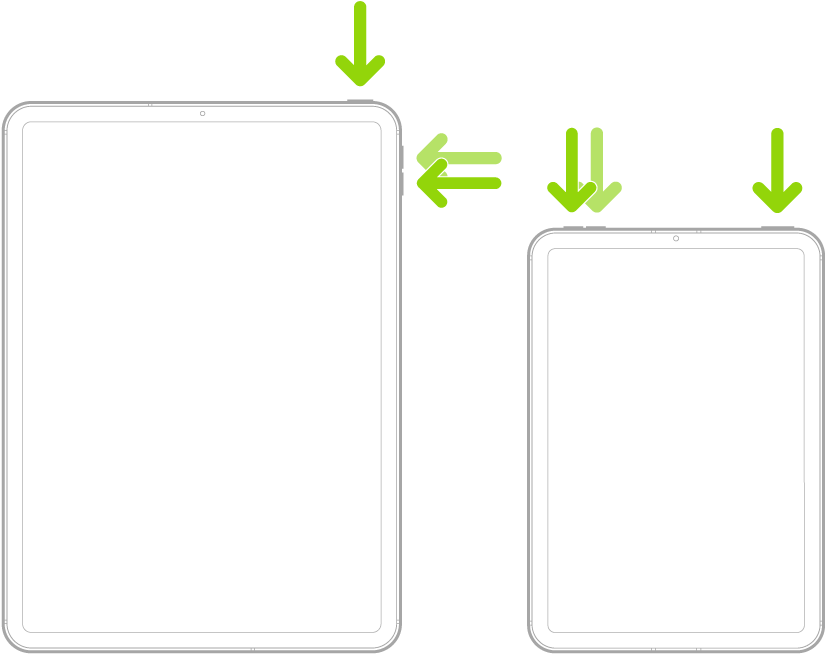
Force restart iPad (models with Face ID or with Touch ID in the top button)
If your iPad doesn’t have the Home button, do the following:
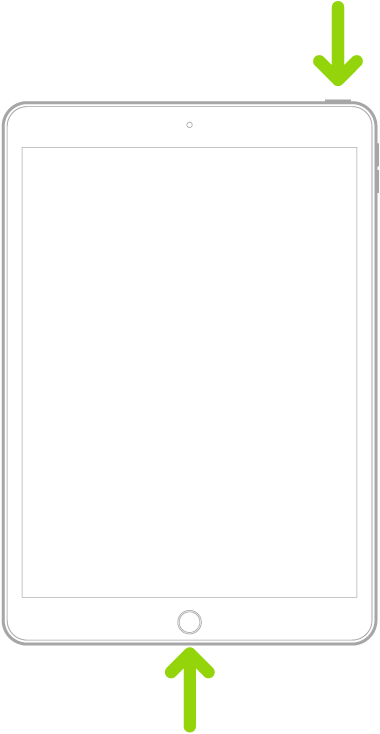
Force restart iPad (models with the Home button)
Press and hold the top button and the Home button at the same time. When the Apple logo appears, release both buttons.
For recommended DNS servers (configured at your home router and/or your iPad), you might choose one of the following Recursive DNS Providers (IPv4 and IPv6 addresses included below):
Quad9
9.9.9.9
149.112.112.112
2620:fe::fe
2620:fe::9
OpenDNS
208.67.222.222
208.67.220.220
2620:0:ccc::2
2620:0:ccd::2
Cloudflare
1.1.1.1
1.0.0.1
2606:4700:4700::1111
2606:4700:4700::1001
Should it be necessary to escalate your issue to Apple Support, the quickest route to engaging with Apple Support will be via the Support link at top-right or bottom-left of this page.
Translation:
Unable to connect to the server.
Unable to activate Ipad.
Start here >>> If you can't activate your iPhone or iPad (Wi-Fi + Cellular) - Apple Support
If you are experiencing difficulties with (re)activation of your iPad, you may have more success if you connect your iPad to a Windows PC (with iTunes for Windows installed) or a Mac (with iTunes or Finder - as appropriate for the installed version of macOS). Once connected to your computer, your iPad will be detected - and you should be able to activate using iTunes.
A restart of your WiFi Router and/or a change of DNS settings may also be helpful.
To restart you home router, disconnect power - then wait at least 30 seconds before restarting. When you router has rebooted (which may take several minutes), force-restart your iPad:
Force restart iPad (models with Face ID or with Touch ID in the top button)
If your iPad doesn’t have the Home button, do the following:
Force restart iPad (models with the Home button)
Press and hold the top button and the Home button at the same time. When the Apple logo appears, release both buttons.
For recommended DNS servers (configured at your home router and/or your iPad), you might choose one of the following Recursive DNS Providers (IPv4 and IPv6 addresses included below):
Quad9
9.9.9.9
149.112.112.112
2620:fe::fe
2620:fe::9
OpenDNS
208.67.222.222
208.67.220.220
2620:0:ccc::2
2620:0:ccd::2
Cloudflare
1.1.1.1
1.0.0.1
2606:4700:4700::1111
2606:4700:4700::1001
Should it be necessary to escalate your issue to Apple Support, the quickest route to engaging with Apple Support will be via the Support link at top-right or bottom-left of this page.
Xin chào ~ Nhấp vào bên dưới?
Nếu bạn không thể kích hoạt iPhone hoặc iPad (Wi-Fi + Cellular) - Bộ phận hỗ trợ của Apple
~Katana-San~
Please contact Apple Support using the link below. This will bypass the language difference.
Vui lòng liên hệ với Bộ phận Hỗ trợ của Apple bằng cách sử dụng liên kết bên dưới. Điều này sẽ bỏ qua sự khác biệt về ngôn ngữ.
Bộ phận hỗ trợ chính thức của Apple
Không kết nối được với máy chủ .