No sidebar for Macintosh HD MacOS Tahoe

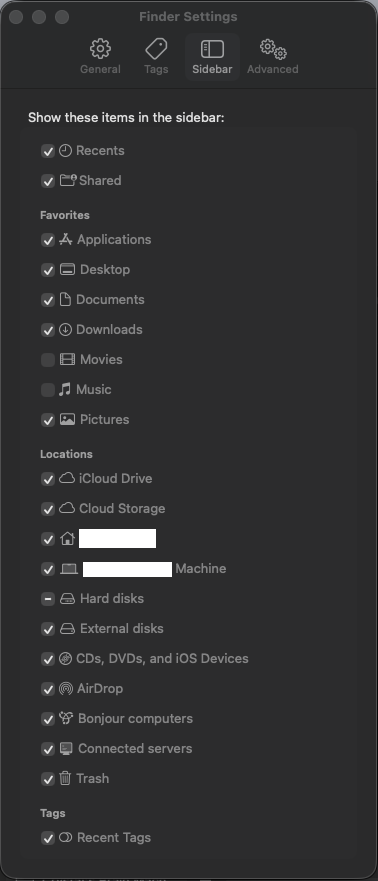
After upgrading to MacOS Tahoe, there is now no sidebar showing for the Mac HD or Time Machine External HD. The sidebars are visible for folders on my desktop though. I went to the Finder menu and made sure all boxes were checked for sidebar. I also restarted my iMac M4 afterwards. Same results.

iMac 24″, macOS 26.0

Posted on Sep 17, 2025 11:27 AM

Reply
Question marked as Top-ranking reply

Posted on Sep 17, 2025 11:37 AM

bearjerr wrote:

After upgrading to MacOS Tahoe, there is now no sidebar showing for the Mac HD or Time Machine External HD.
The sidebars are visible for folders on my desktop though.

I went to the Finder menu and made sure all boxes were checked for sidebar. I also restarted my iMac M4 afterwards. Same results.


is it a matter of spinning open the caret...? Move your mouse to the right side to reveal the hidden dropdown caret.


if you do not see Locations in the Sidebar open the Finder>Settings>Sidebar and make some changes

7 replies
Question marked as Top-ranking reply

Sep 17, 2025 11:37 AM in response to bearjerr

bearjerr wrote:

After upgrading to MacOS Tahoe, there is now no sidebar showing for the Mac HD or Time Machine External HD.
The sidebars are visible for folders on my desktop though.

I went to the Finder menu and made sure all boxes were checked for sidebar. I also restarted my iMac M4 afterwards. Same results.


is it a matter of spinning open the caret...? Move your mouse to the right side to reveal the hidden dropdown caret.


if you do not see Locations in the Sidebar open the Finder>Settings>Sidebar and make some changes

Sep 17, 2025 5:05 PM in response to bearjerr

The Tahoe update was... interesting 🤔. Here are some unique ways to view "system files", which are naturally hidden in finder (for general users).


From Finder (Option 1):

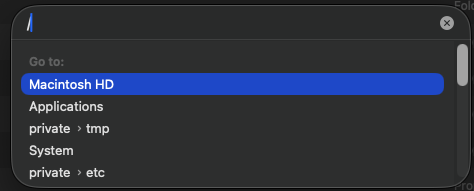
Open Finder > Press 'cmd + shift + G', then a search will appear. Begin your query with a forward slash '/' or if you are unsure of the file path, begin the query with '~/'

From Finder (Option 2):

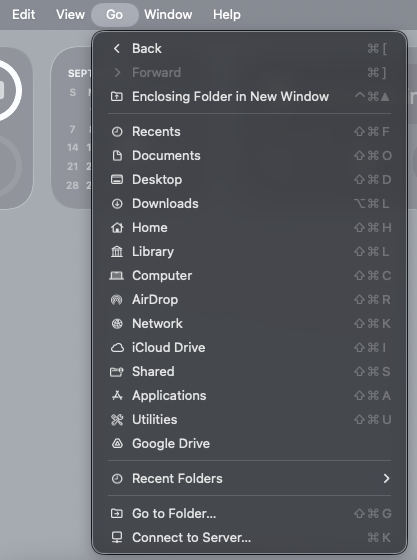
In the top pane of finder, you can navigate to the "Go" tab and navigate from there.

From Finder (Option 3):

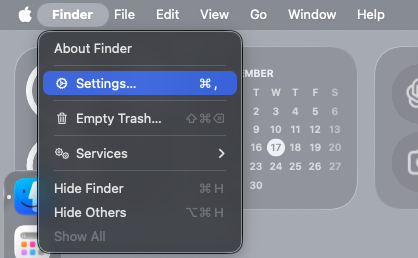
Edit your finder settings > sidebar > select what you would like to see.


For more advanced users, I would recommend using the terminal for quick navigation. Nowadays, if you have access to an AI interface, I would 10/10 recommend asking it how to navigate.

This thread has been closed by the system or the community team. You may vote for any posts you find helpful, or search the Community for additional answers.

No sidebar for Macintosh HD MacOS Tahoe

Welcome to Apple Support Community
A forum where Apple customers help each other with their products. Get started with your Apple Account.