iCloud storage upgrade doesn't seem to be working

I just upgraded my iCould storage from 2TB to 6TB so I could store an additional 2.5TB of video content. My iCould Drive on my Mac says it's just 2TB, but on the web it shows 6TB.

Now that I've upgraded, when it try to drag the files I want to store to the iCloud Drive, it says I don't have enough storage. Why am I paying for storage I cannot access???

Mac Studio

Posted on Nov 19, 2025 5:57 AM

Reply
Question marked as Top-ranking reply

Posted on Nov 19, 2025 9:07 AM

buzzdude wrote:

Where can I get more info on this?

Apple has lots of additional information at Official Apple Support. The page itself looks pretty bare. Enter "iCloud Drive" in the "Search for more topics" field and it will show you many dozens of documents explaining various aspects.


That doesn't mean any of that will help. Sometimes Apple doesn't explain things clearly.


I did not know that there was an iCloud Drive on my computer. I thought it was just a pointer to the actual iCloud folder. I am completely lost. Is there a way to increase the iCloud folder on the Mac to the same 6TB as the iCloud account?

No.


iCloud is a file sync service. It's not a backup. Sometimes people get confused by the iOS backups in iCloud. You should always have your data archived somewhere locally.


The way it works it that the "iCloud Drive" location in the Finder reflects the same content that is stored inside the iCloud service at Apple. If you've enabled iCloud Drive Desktop & Documents, then those two folders will be included.


Do I need to?

No.


In an ideal world, your iCloud Drive location will be an exact copy of what is on Apple's service. If your hard drive isn't big enough, it will only keep local versions of the most recently modified files. As soon as you try to access a file that isn't stored locally, it will download it from the internet.


It works pretty well in day-to-day use. Initial setups, major upgrades, and large uploads can be emotionally taxing.


The web interface will not let me upload folders by dragging.

Indeed.

The videos are in a complex folder structure, so I am trying to drag the top folder into the iCloud Drive. Is there no way to do that?


You will have to make enough room on your local hard drive to store the data while it's being uploaded. You have a terabyte of local iCloud data already, so that means you have about a terabyte of data to work with.


The catch is that you do have to have enough local storage to host the data first. And Apple operating systems aren't very accommodating when you need more storage. They just display an error message. I see this problem all the time with more typical storage problems. They might also gaslight you in a couple of days claiming that you have plenty of storage. I don't know if that will happen in your case.


My recommendation is to simply make more local storage available. In the Finder, locate a large file or folder in an iCloud folder. Control click or right click on it. You should see an option to "Remove download", as shown here:
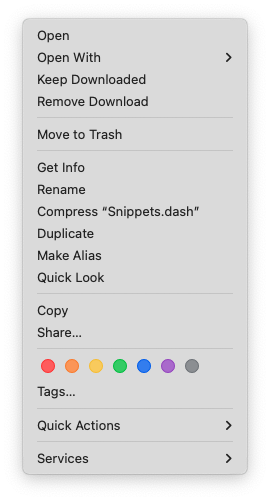

Choose that option. You should see a little iCloud down arrow icon indicating that this file is available for download. But don't get too excited. It's probably not true. You may have to wait a day or two for the storage to become available.


Repeat that enough times to free up space for one of your complicate folders. Then you should be able to drag it in.


Make sure to go to iCloud Drive settings and enable the "Optimize" setting. You don't want iCloud Drive to start re-downloading the files you're trying to remove. You want them to go away so you have more local storage to add more.


Once you get all of the new files added to iCloud Drive, it should automatically adjust and keep the most recent files available for local use. All of the files where you've done "Remove Download" will also be available. But when you try to access them, they'll need to be downloaded.


With 6 TB of iCloud storage, you will have to exercise judgement about the files you access. If you try to access 1 TB of files on Monday, you might not get them until Tuesday or Wednesday. And then if you want a different TB of data, that'll take more time. That's just life on the Internet.


The nice part about iCloud storage is that you can change your mind and downgrade. If this is too much of a hassle, you might want to consider an external SSD for faster access to these files. And you can do both, keep them on an external SSD and in iCloud. But remember, always keep at least one local copy somewhere.


4 replies
Question marked as Top-ranking reply

Nov 19, 2025 9:07 AM in response to buzzdude

buzzdude wrote:

Where can I get more info on this?

Apple has lots of additional information at Official Apple Support. The page itself looks pretty bare. Enter "iCloud Drive" in the "Search for more topics" field and it will show you many dozens of documents explaining various aspects.


That doesn't mean any of that will help. Sometimes Apple doesn't explain things clearly.


I did not know that there was an iCloud Drive on my computer. I thought it was just a pointer to the actual iCloud folder. I am completely lost. Is there a way to increase the iCloud folder on the Mac to the same 6TB as the iCloud account?

No.


iCloud is a file sync service. It's not a backup. Sometimes people get confused by the iOS backups in iCloud. You should always have your data archived somewhere locally.


The way it works it that the "iCloud Drive" location in the Finder reflects the same content that is stored inside the iCloud service at Apple. If you've enabled iCloud Drive Desktop & Documents, then those two folders will be included.


Do I need to?

No.


In an ideal world, your iCloud Drive location will be an exact copy of what is on Apple's service. If your hard drive isn't big enough, it will only keep local versions of the most recently modified files. As soon as you try to access a file that isn't stored locally, it will download it from the internet.


It works pretty well in day-to-day use. Initial setups, major upgrades, and large uploads can be emotionally taxing.


The web interface will not let me upload folders by dragging.

Indeed.

The videos are in a complex folder structure, so I am trying to drag the top folder into the iCloud Drive. Is there no way to do that?


You will have to make enough room on your local hard drive to store the data while it's being uploaded. You have a terabyte of local iCloud data already, so that means you have about a terabyte of data to work with.


The catch is that you do have to have enough local storage to host the data first. And Apple operating systems aren't very accommodating when you need more storage. They just display an error message. I see this problem all the time with more typical storage problems. They might also gaslight you in a couple of days claiming that you have plenty of storage. I don't know if that will happen in your case.


My recommendation is to simply make more local storage available. In the Finder, locate a large file or folder in an iCloud folder. Control click or right click on it. You should see an option to "Remove download", as shown here:


Choose that option. You should see a little iCloud down arrow icon indicating that this file is available for download. But don't get too excited. It's probably not true. You may have to wait a day or two for the storage to become available.


Repeat that enough times to free up space for one of your complicate folders. Then you should be able to drag it in.


Make sure to go to iCloud Drive settings and enable the "Optimize" setting. You don't want iCloud Drive to start re-downloading the files you're trying to remove. You want them to go away so you have more local storage to add more.


Once you get all of the new files added to iCloud Drive, it should automatically adjust and keep the most recent files available for local use. All of the files where you've done "Remove Download" will also be available. But when you try to access them, they'll need to be downloaded.


With 6 TB of iCloud storage, you will have to exercise judgement about the files you access. If you try to access 1 TB of files on Monday, you might not get them until Tuesday or Wednesday. And then if you want a different TB of data, that'll take more time. That's just life on the Internet.


The nice part about iCloud storage is that you can change your mind and downgrade. If this is too much of a hassle, you might want to consider an external SSD for faster access to these files. And you can do both, keep them on an external SSD and in iCloud. But remember, always keep at least one local copy somewhere.

Nov 19, 2025 6:08 AM in response to buzzdude

If you do not see the upgrade you can always check how much iCloud storage you're using in Settings on your device, on a Mac, or on iCloud.com


- On your iPhone, iPad, or iPod touch, go to Settings > [your name] > iCloud.

- macOS Ventura: Choose Apple menu > System Settings, click [your name] at the top of the sidebar, then click iCloud on the right.

- macOS 12 or earlier: Choose Apple menu > System Preferences, click Apple ID, then click iCloud.

- On iCloud.com --> https://iCloud.com


ref: Check your iCloud storage on any device - Apple Support

Manage your iCloud storage on your Apple device - Apple Support


Sometimes restarting a device will get the system to take a fresh look at configurations.


If it still won't show, report the issue to Apple --> Choose your country or region - Official Apple Support Select your country, then a product.

or:

Worldwide iTunes support - Choose your country or region - Official Apple Support


Nov 19, 2025 6:26 AM in response to buzzdude

That's the amount of storage that you have on iCloud Drive on your computer. You don't have enough extra space on your computer for what you're trying to copy in.


You may need to change your settings and make sure that "Optimize" is enabled. Then, you'll have to identify some data that you don't need and perform a "Remove Download" via the context menu in the Finder.

Nov 19, 2025 6:42 AM in response to etresoft

Where can I get more info on this? I did not know that there was an iCloud Drive on my computer. I thought it was just a pointer to the actual iCloud folder. I am completely lost. Is there a way to increase the iCloud folder on the Mac to the same 6TB as the iCloud account? Do I need to? The web interface will not let me upload folders by dragging. The videos are in a complex folder structure, so I am trying to drag the top folder into the iCloud Drive. Is there no way to do that?

iCloud storage upgrade doesn't seem to be working

Welcome to Apple Support Community
A forum where Apple customers help each other with their products. Get started with your Apple Account.