IOS 26.1 Software Update ISSUE, Needs to be fixed ASAP!

I currently have an iPad Air 4th Generation. After updating the software to IOS 26.1 my iPad is having storage issues that are absolutely terrible. But the main ISSUE, is the WiFi not working correctly. I will connect to the WiFi on all my devices, iPhone, Xbox, etc. but the iPad keeps disconnecting. I know this isn’t a WiFi router issue because everything works WiFi wise except the iPad. It’ll now only work for about a few minutes and then I’ll have to completely shut off the iPad just to get it to work again, for an only a few more minutes. The weird thing is.. it doesn’t physically show it’s disconnected from the WiFi or that there is a WiFi router issue in the WiFi settings. It just says no connection while the WiFi bars still appear as normal. This needs fixed asap, as it’s incredibly frustrating and annoying for iPad users or perhaps any user under the software IOS 26.1. There needs to be a fast and serious fix to this issue.

iPad Air (4th generation)

Posted on Nov 27, 2025 9:30 PM

Reply
Question marked as Top-ranking reply

Posted on Nov 28, 2025 9:50 AM

WiFi/Internet connection difficulties are usually an indication that your device does not have a routable IP Address - your IP Address usually being assigned by DHCP. When problems occur, your iPad may only have a self-assigned link-local IP address that begins 169.254.x.x.


You can verify your DHCP-assigned IP Address from settings:

Settings > WiFi > [Your WiFi Network / SSID] - tap the blue “i” icon - [IPv4 Address] IP Address


If you have a VPN App or profiles installed, or a security/AV/firewall App such as Norton, these may be interfering with DHCP and preventing your device from obtaining a valid IP Address for the WiFi network to which you are attempting to connect. The resolution is usually simple; if installed, you may only need to temporarily disable or remove the Security App and/or VPN.


DHCP is frequently used to automatically obtain an IP Address. Until your iPad has a valid IP Address to connect to your network, you will not have an internet connection. Disabling or removing VPN and/or the offending security App should allow DHCP to operate normally - allowing connection to your network and the internet.


If this resolves your issue, the VPN and/or security App can be reinstated after the connectivity problem has been resolved.


If some Apps are working as expected, while others are not - or other devices can connect to your WiFi network - you may find that a restart of your WiFi Router, followed by a restart of your iPad will clear the problem….


To restart your router, disconnect power from the router for at least 30 seconds - then reconnect power to restart. After your router reboots (which may take several minutes), force restart your iPad:


Force restart iPad (models with Face ID or with Touch ID in the top button)

If your iPad doesn’t have the Home button, do the following:

  1. Press and quickly release the volume button nearest to the top button.
  2. Press and quickly release the volume button farthest from the top button.
  3. Press and hold the top button.
  4. When the Apple logo appears, release the top button.


Force restart iPad (models with the Home button)

Press and hold the top button and the Home button at the same time. When the Apple logo appears, release both buttons.
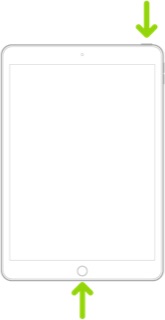


If you continue to have difficulties, check to see if your iPad is using the WiFi Private Address feature. This feature is intended to provide additional privacy and security when using “public” (untrusted) WiFi networks.

Settings > WiFi > [Your WiFi Network / SSID] - tap the “i” icon - Private Address


The Private Address feature is largely unnecessary for your home WiFi network; if enabled, Private Addressing can cause issues if specific MAC addresses are expected by your WiFi Router. You may need to disable this feature - and can be enabled or disabled for each individual network.

Use private Wi-Fi addresses in iOS 14, iPadOS 14, and watchOS 7 - Apple Support


Some internet connection issues under iPadOS 26.x have been associated with Apple's Private Relay Service. If you are unable to resolve connection issues using steps previously described, try disabling Private Relay:

Settings > [Your Name / Apple Account] > iCloud > [iCloud+ Features] Private Relay > Private Relay - set to OFF


6 replies
Question marked as Top-ranking reply

Nov 28, 2025 9:50 AM in response to CosmicK777

WiFi/Internet connection difficulties are usually an indication that your device does not have a routable IP Address - your IP Address usually being assigned by DHCP. When problems occur, your iPad may only have a self-assigned link-local IP address that begins 169.254.x.x.


You can verify your DHCP-assigned IP Address from settings:

Settings > WiFi > [Your WiFi Network / SSID] - tap the blue “i” icon - [IPv4 Address] IP Address


If you have a VPN App or profiles installed, or a security/AV/firewall App such as Norton, these may be interfering with DHCP and preventing your device from obtaining a valid IP Address for the WiFi network to which you are attempting to connect. The resolution is usually simple; if installed, you may only need to temporarily disable or remove the Security App and/or VPN.


DHCP is frequently used to automatically obtain an IP Address. Until your iPad has a valid IP Address to connect to your network, you will not have an internet connection. Disabling or removing VPN and/or the offending security App should allow DHCP to operate normally - allowing connection to your network and the internet.


If this resolves your issue, the VPN and/or security App can be reinstated after the connectivity problem has been resolved.


If some Apps are working as expected, while others are not - or other devices can connect to your WiFi network - you may find that a restart of your WiFi Router, followed by a restart of your iPad will clear the problem….


To restart your router, disconnect power from the router for at least 30 seconds - then reconnect power to restart. After your router reboots (which may take several minutes), force restart your iPad:


Force restart iPad (models with Face ID or with Touch ID in the top button)

If your iPad doesn’t have the Home button, do the following:

  1. Press and quickly release the volume button nearest to the top button.
  2. Press and quickly release the volume button farthest from the top button.
  3. Press and hold the top button.
  4. When the Apple logo appears, release the top button.


Force restart iPad (models with the Home button)

Press and hold the top button and the Home button at the same time. When the Apple logo appears, release both buttons.


If you continue to have difficulties, check to see if your iPad is using the WiFi Private Address feature. This feature is intended to provide additional privacy and security when using “public” (untrusted) WiFi networks.

Settings > WiFi > [Your WiFi Network / SSID] - tap the “i” icon - Private Address


The Private Address feature is largely unnecessary for your home WiFi network; if enabled, Private Addressing can cause issues if specific MAC addresses are expected by your WiFi Router. You may need to disable this feature - and can be enabled or disabled for each individual network.

Use private Wi-Fi addresses in iOS 14, iPadOS 14, and watchOS 7 - Apple Support


Some internet connection issues under iPadOS 26.x have been associated with Apple's Private Relay Service. If you are unable to resolve connection issues using steps previously described, try disabling Private Relay:

Settings > [Your Name / Apple Account] > iCloud > [iCloud+ Features] Private Relay > Private Relay - set to OFF

Nov 28, 2025 6:39 PM in response to CosmicK777

CosmicK777 wrote:

I know this isn’t a WiFi router issue because everything works WiFi wise except the iPad.

No, that is not a correct assumption. You can have a router that works with 50 devices and not with one. There are 2 tests: First restart the router by removing all power for about 15 seconds.


Have you tested the iPad with other Wi-Fi networks, like MacDonald’s, Starbuck’s, any café with free Wi-Fi, your public library, a friend’s network?


Perhaps a long shot:


Do you have a 3rd party VPN installed, even if you are not using it? If so, delete the VPN profile in Settings/General/VPN & Device Management/VPN, then restart your device. Don't just turn it off; delete the profile. Updates sometimes need to have VPN to be removed and reinstalled. If that fixes it, you can try reinstalling VPN, but probably shouldn't.

Nov 27, 2025 9:48 PM in response to CosmicK777

  • If you are on a dual band router, then you should set up a 5Ghz only band and connect your iPad and all 5Ghz compatible devices to that band. The old 2.4Ghz band is easily congested with multiple devices and interference from other devices that will cause your iPad to drop out.
  • If you have a VPN, then uninstall it. Turning it off would make no difference as it continues to run, it must be removed.
  • Check for a firmware update on your router or contact your ISP. You can blame iOS 26.1 if you want, but an update is not going to fix the problem. It is not unusual for one device to be the one that drops the internet connection while others are able to maintain the connection. You can check yourself by taking your iPad to another location and connecting to a different WiFi router.

Nov 27, 2025 10:37 PM in response to Mac Jim ID

This has never occurred before, until I updated the iPad. Not one problem with my WiFi connection and my WiFi is the 5G band width/ grade. We don’t cheap out on WiFi in a house hold that we have. Also, Don’t use VPN, never needed too and probably won’t ever. I’ll look into the router more and call my provider but I highly doubt it’s the issue. Thanks though for your thoughts.

IOS 26.1 Software Update ISSUE, Needs to be fixed ASAP!

Welcome to Apple Support Community
A forum where Apple customers help each other with their products. Get started with your Apple Account.