Photos not syncing with iCloud

I recently set up a new iPhone 14 pro device (iOS 16.6) based on my iCloud account linked to my previous phone.


ISSUE: All data got transferred from my previous phone (iPhone XR) apart from photos & videos. When I take a picture on the new device, it does not sync with iCloud either.


I have taken the following steps and nothing helps:

  1. Sign out and sign in to iCloud on the device
  2. Re-login to the new device
  3. Check iCloud storage - there is plenty of space
  4. Connected to wifi and power when initiating the Sync with iCloud


The only reason behind the problem I can think of - my iPhone 14 Pro is not yet connected to a cellular network via eSIM.


Please help ! As I have spent more than 3 hours to find troubleshooting techniques ...


iPhone 14 Pro

Posted on Aug 7, 2023 2:03 PM

Reply
Question marked as Top-ranking reply

Posted on Aug 8, 2023 11:49 AM

Hello MariPar,


Thank you for reaching out to Apple Support Communities.


Let's verify you set up iCloud Photos using these steps to guide you:


"Set up iCloud Photos on your iPhone, iPad, or iPod touch

  1. On your iPhone, iPad, or iPod touch, go to Settings > [your name] > iCloud > Photos.
  2. Do one of the following:
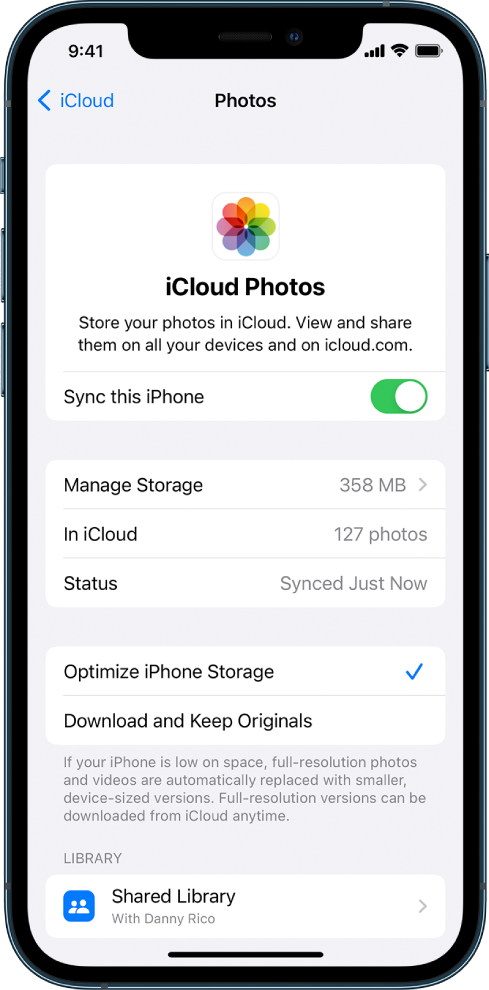
  • iOS 16, iPadOS 16, or later: Turn on Sync this [device].

The iCloud Photos screen in iCloud settings. Sync this iPhone is turned on.

    • iOS 15, iPadOS 15, or earlier: Turn on iCloud Photos.

All the photos and videos in the Photos app on your device are added to iCloud. Also, any photos and videos already stored in iCloud Photos are now available on your device.


3.To view photos and videos stored in iCloud Photos, open the Photos app, then tap Library. All the photos and videos you see are stored in iCloud Photos.

For more information on how to use iCloud Photos and optimize photo storage on your iPhone, iPad, or iPod touch, see any of the following:


Additional details can be found here: Set up iCloud Photos on all your devices


If the issue persists, can you provide a few more details? What do you see when you log into iCloud photos via a web browser?


Cheers!

Similar questions

10 replies
Question marked as Top-ranking reply

Aug 8, 2023 11:49 AM in response to MariPar

Hello MariPar,


Thank you for reaching out to Apple Support Communities.


Let's verify you set up iCloud Photos using these steps to guide you:


"Set up iCloud Photos on your iPhone, iPad, or iPod touch

  1. On your iPhone, iPad, or iPod touch, go to Settings > [your name] > iCloud > Photos.
  2. Do one of the following:
  • iOS 16, iPadOS 16, or later: Turn on Sync this [device].

The iCloud Photos screen in iCloud settings. Sync this iPhone is turned on.

    • iOS 15, iPadOS 15, or earlier: Turn on iCloud Photos.

All the photos and videos in the Photos app on your device are added to iCloud. Also, any photos and videos already stored in iCloud Photos are now available on your device.


3.To view photos and videos stored in iCloud Photos, open the Photos app, then tap Library. All the photos and videos you see are stored in iCloud Photos.

For more information on how to use iCloud Photos and optimize photo storage on your iPhone, iPad, or iPod touch, see any of the following:


Additional details can be found here: Set up iCloud Photos on all your devices


If the issue persists, can you provide a few more details? What do you see when you log into iCloud photos via a web browser?


Cheers!

Aug 8, 2023 12:53 PM in response to MariPar

Hi MariPar,


Thanks for letting us know more.


Since the photos aren't syncing, please check out this link, which has some additional suggestions that may help resolve this issue: If your iCloud Photos aren't syncing to your device


If your photos still aren't syncing to iCloud

Learn what to do if you don't see a status message at the bottom of the Photos app that explains why your photos aren't syncing, or syncing is taking a long time. If you see a Couldn’t Sync [number of items] to iCloud status message, learn how to move these photos to your library

Connect your device to power

If your device seems to be stuck on a status message that says Syncing [number of items] to iCloud or Syncing with iCloud…, connect your iPhone or iPad to power and to Wi-Fi.

Check your Apple ID

Make sure that you signed in to iCloud with the correct Apple ID on your device.
Learn how to sign in to iCloud

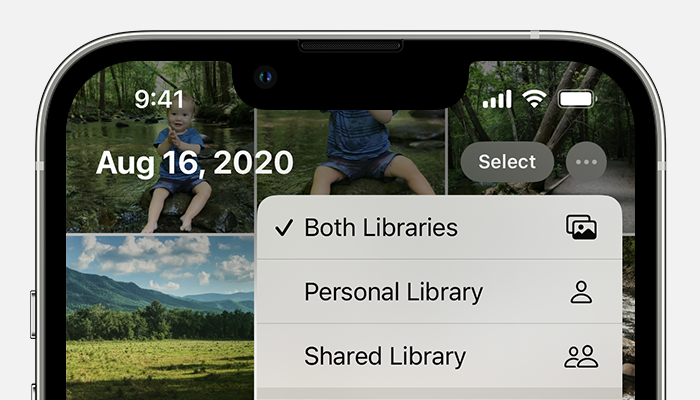
Check which Library view you're in

If you set up iCloud Shared Photo Library in iOS 16.1 or later, iPadOS 16.1 or later, or macOS Ventura or later, check which Library view you're in. When you move photos to your Shared Library, you no longer see them in your Personal Library. You also won't see photos moved to your Shared Library if you're on a device with an earlier version of iOS, iPadOS, or macOS or if the iCloud Shared Photo Library owner has run out of iCloud storage.

Learn how to switch between your Personal Library and Shared Library

The Both Libraries view selected on an iPhone.


If that doesn't help, please contact Apple Support, so they can provide additional assistance with this issue. You may be able to reach them here: Get Support


Thanks!

Aug 8, 2023 12:42 PM in response to Omar_A1

Hi Omar,


Thank you very much for the information. I went through your provided steps / screen shots, and all looks correct on my new phone.


When I log in to iCloud Photos via a web browser, I can see the right number of photos that exist on my old phone. I can even see an iCloud link that was generated on my new phone. Though, the Library tab of the Photos app on the new phone does not show any photos from my iCloud. Even the new photos taken on the new device are not getting synced with iCloud (which I am logged in to).


Would appreciate any additional guidance, as I have run out of ideas .. :((

This thread has been closed by the system or the community team. You may vote for any posts you find helpful, or search the Community for additional answers.

Photos not syncing with iCloud

Welcome to Apple Support Community
A forum where Apple customers help each other with their products. Get started with your Apple Account.