How can I restore a 1TB photo library from iCloud to an external drive after corruption?

Hi, my photos library has corrupted c. 1TB of data. It was on an external hard drive, but I sync'd to iCloud as back up. I've tried to repair/recover the data and whilst I can recover what seems like most of the data the photoslibrary won't load.


Is there a way to restore the photo library from iCloud back to an external drive? Do I have to do it piecemeal or is there a better way to do it all at once?


thanks


[Re-Titled by Moderator]

Original Title: Photos library has corrupted - best next steps


MacBook Air, macOS 15.6

Posted on Sep 10, 2025 12:48 AM

Reply
Question marked as Top-ranking reply

Posted on Sep 10, 2025 9:54 AM

As Yer_Man said: Create a new System Photo Library.


To do that, first, make sure you have plenty of room on the external drive. Also, we're hoping your external drive is formatted in either APFS format or Mac OS Extended (Jou.rnaled) format. The drive must be connected directly to the Mac by cable, not networked, clouded, NASed, etc. Additionally, the drive can not have had Time Machine on it since it was formatted. There have been so many problems with using incompatible drives that the newest macOSs won't even allow a Library on a non-Mac formatted drive to open, since there is a chance of damaging the Photos database. See this:

Move your Photos library to save space on your Mac - Apple Support

If this drive is in a an incompatible format, stop running Photos with it immediately!  A Photos Library can sit on an incompatible drive, but running it may corrupt the database.


In any case, keep that Library for backup.


To make a new Library for the Mac, close Photos, option click the Photos icon, and choose Create New from the Library dialog. 
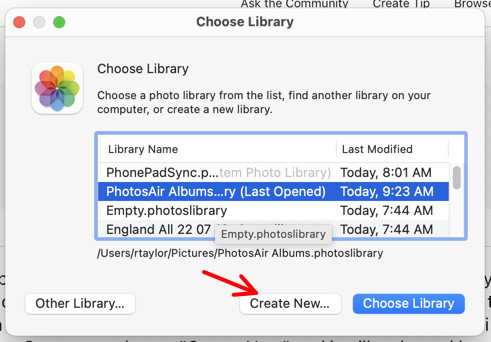
You can specify the hard drive location.


A new, empty Library will open. Then, on the Mac in Photos>Settings>General, you must make this new, empty Library your System Library. 
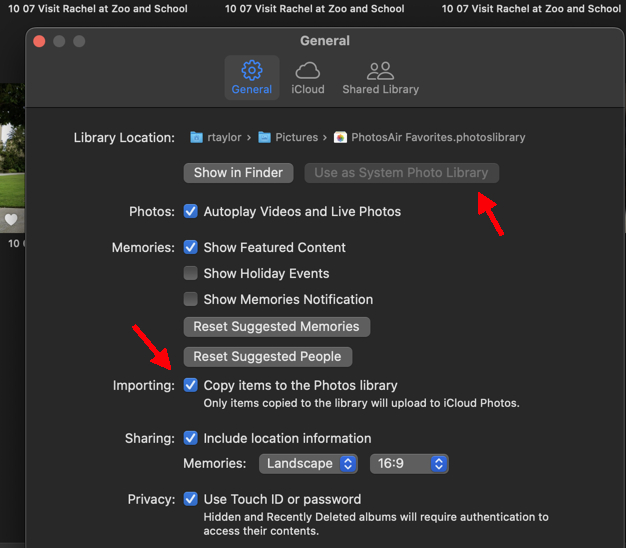
In this picture "Use as your System Library" is grayed out, because it already is the system library. Only the System Library can connect to iCloud.


Go to Settings>iCloud and connect this new Library to iCloud:
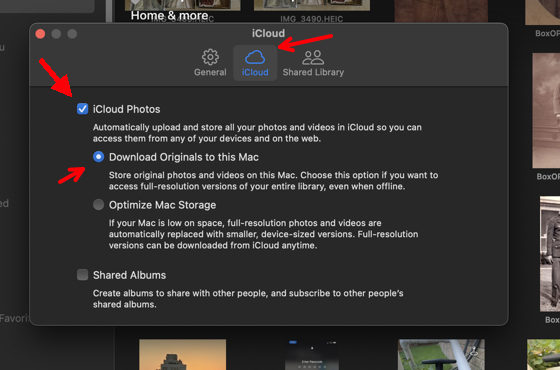
Set "Download Originals," if you have the storage space available on your drive. If not, you can check "Optimize."


Then wait. Wait some more, and eventually this new Library will fill with full sized images from iCloud. Once you've verified that everything is OK, you can trash the old Library.


2 replies
Question marked as Top-ranking reply

Sep 10, 2025 9:54 AM in response to jbodders

As Yer_Man said: Create a new System Photo Library.


To do that, first, make sure you have plenty of room on the external drive. Also, we're hoping your external drive is formatted in either APFS format or Mac OS Extended (Jou.rnaled) format. The drive must be connected directly to the Mac by cable, not networked, clouded, NASed, etc. Additionally, the drive can not have had Time Machine on it since it was formatted. There have been so many problems with using incompatible drives that the newest macOSs won't even allow a Library on a non-Mac formatted drive to open, since there is a chance of damaging the Photos database. See this:

Move your Photos library to save space on your Mac - Apple Support

If this drive is in a an incompatible format, stop running Photos with it immediately!  A Photos Library can sit on an incompatible drive, but running it may corrupt the database.


In any case, keep that Library for backup.


To make a new Library for the Mac, close Photos, option click the Photos icon, and choose Create New from the Library dialog. 

You can specify the hard drive location.


A new, empty Library will open. Then, on the Mac in Photos>Settings>General, you must make this new, empty Library your System Library. 

In this picture "Use as your System Library" is grayed out, because it already is the system library. Only the System Library can connect to iCloud.


Go to Settings>iCloud and connect this new Library to iCloud:

Set "Download Originals," if you have the storage space available on your drive. If not, you can check "Optimize."


Then wait. Wait some more, and eventually this new Library will fill with full sized images from iCloud. Once you've verified that everything is OK, you can trash the old Library.


This thread has been closed by the system or the community team. You may vote for any posts you find helpful, or search the Community for additional answers.

How can I restore a 1TB photo library from iCloud to an external drive after corruption?

Welcome to Apple Support Community
A forum where Apple customers help each other with their products. Get started with your Apple Account.