I use AppCleaner. However, use it carefully and heed the warning below:
WARNING: If you use AppCleaner on an app that you have other apps from the same developer, like Adobe, you must be extremely careful checking all checkboxes and deleting. Some for those files may support other apps from the same developer and deleting them can mess them up. Adobe apps is a primary example. I know from experience. For singular apps from a developer it's safe.
If used carefully it's perfectly safe. You can give it a try without actually removing any files. But the app must not have been deleted beforehand.
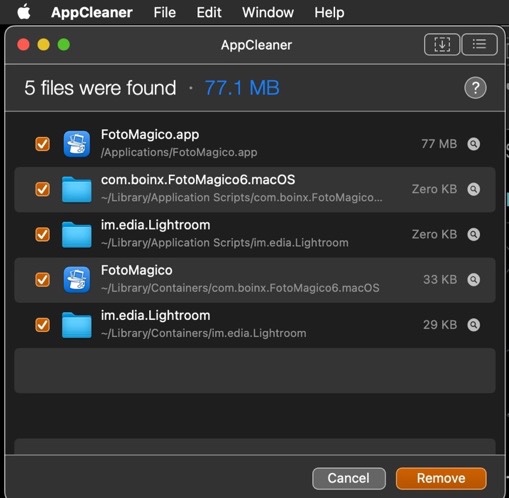
If the app was then you can use the shareware app Find Any File to search for any files with the application's or the developer's name in the file name. For FotoMagico software you'd do the following search(es):
1 - Name contains FotoMagico
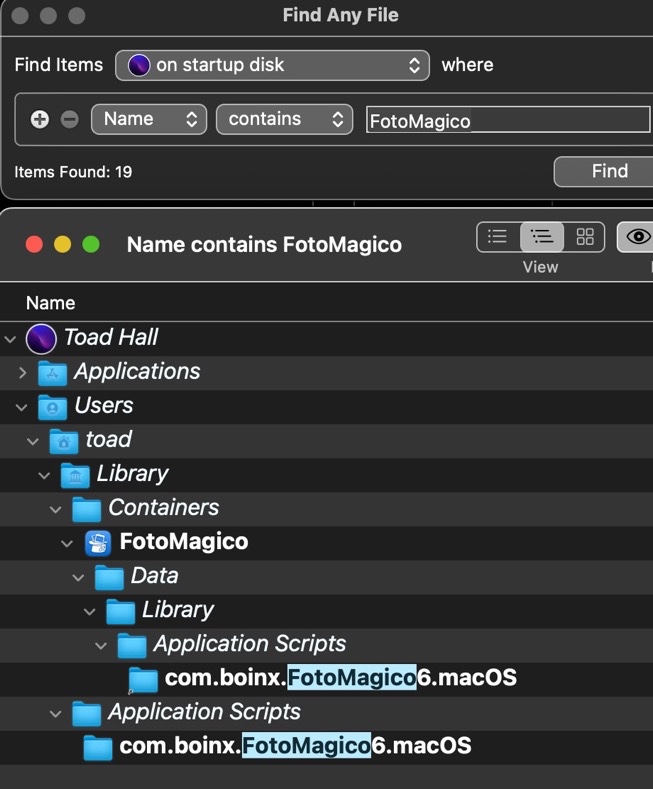
2 - boinx

Any files that are found can be dragged from the search results window to the Desktop or Trash bin in the Dock for deletion.
FAF can search areas that Spotlight can't like invisible folders, system folders and packages.