How do I download all iCloud photos to an external drive on an iMac?

Hi everyone

Im running out of space on my iMac but I like to have a copy of all my photos (15-16000) that is stored in iCloud. I have an external drive with enough space, but I can only download 1000 pcs at the time, I am an old man and not very technical minded, is there an easy way to download them without changing anything ?

Thank in advance. Easter greetings from Denmark


[Re-Titled by Moderator]

iMac (2017 – 2020)

Posted on Apr 19, 2025 6:22 AM

Reply
Question marked as Top-ranking reply

Posted on Apr 20, 2025 7:19 AM

ulbrandt wrote: …it makes the process impossible for me

I think that may be because iCloud.com was never meant to be a place for mass operations. Since iCloud is a synchronization service and not a backup service, everything at iCloud can be handled on the Mac where things are way easier.


If you want jpgs in Finder, then the best way to go is to do it with Photos on the Mac. You just use File>Export>Export Unmodified originals if you want those, or File>Export>Export nn Photos to get edited versions. Or both. As always, you should do this in smaller batches.


Having both originals and edits as jpgs takes twice as much storage, and for my money, it's way better to just get a copy of the whole Library, which is smaller and has more information.


So instead, what I would do is format the external drive in APFS with the Disk Utility. Then create a new Photos Library on the external drive, make it the System Library, connect it to iCloud, and turn off Optimize.. Then sit back, relax, and wait for it to fill up with all your pictures.


To do that, you create a new Library with the Library Chooser-- close Photos and option-click the Photos icon to get this:
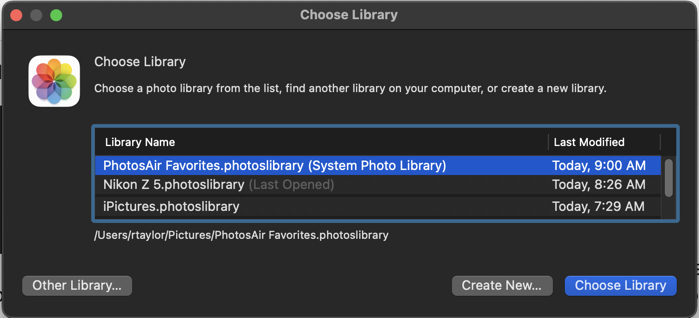
This shows the Libraries you already have (probably only one, but I have a bunch) and has a "Create New" button. You can put the new Library on the external drive with whatever name makes sense to you.


Only the Library designated as the System Library can connect to iCloud, so you have to make this new one the System Library using Photos' Settings>General
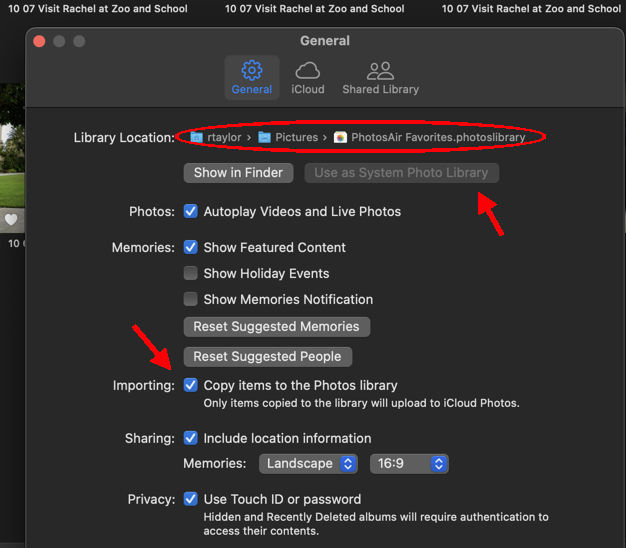
The General Settings shows the location of the Library, and it has a button for "Use as System Photos Library." Mine is grayed out, because it already is. Be sure that "Copy" is checked-- it should be the default.


Then connect to iCloud with Photos' Settings>iCloud.
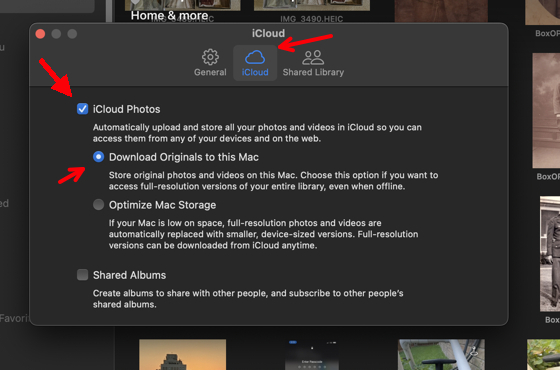
Just check iCloud Photos and "Download Originals."


It will probably take a few days to transfer all the pictures at iCloud.com to your Mac, but you don't have to do a thing. Well, you should leave your iMac turned on, and don't have the Photos app up front-- you don't want it to think syncing would slow your work. Overnight is good.


This way you get the full unmodified original files along with any edits, crops. or comments that you've made. And you can view this Library in Photos, where, if you want, you can export picture files at your leisure.

9 replies
Question marked as Top-ranking reply

Apr 20, 2025 7:19 AM in response to ulbrandt

ulbrandt wrote: …it makes the process impossible for me

I think that may be because iCloud.com was never meant to be a place for mass operations. Since iCloud is a synchronization service and not a backup service, everything at iCloud can be handled on the Mac where things are way easier.


If you want jpgs in Finder, then the best way to go is to do it with Photos on the Mac. You just use File>Export>Export Unmodified originals if you want those, or File>Export>Export nn Photos to get edited versions. Or both. As always, you should do this in smaller batches.


Having both originals and edits as jpgs takes twice as much storage, and for my money, it's way better to just get a copy of the whole Library, which is smaller and has more information.


So instead, what I would do is format the external drive in APFS with the Disk Utility. Then create a new Photos Library on the external drive, make it the System Library, connect it to iCloud, and turn off Optimize.. Then sit back, relax, and wait for it to fill up with all your pictures.


To do that, you create a new Library with the Library Chooser-- close Photos and option-click the Photos icon to get this:

This shows the Libraries you already have (probably only one, but I have a bunch) and has a "Create New" button. You can put the new Library on the external drive with whatever name makes sense to you.


Only the Library designated as the System Library can connect to iCloud, so you have to make this new one the System Library using Photos' Settings>General

The General Settings shows the location of the Library, and it has a button for "Use as System Photos Library." Mine is grayed out, because it already is. Be sure that "Copy" is checked-- it should be the default.


Then connect to iCloud with Photos' Settings>iCloud.

Just check iCloud Photos and "Download Originals."


It will probably take a few days to transfer all the pictures at iCloud.com to your Mac, but you don't have to do a thing. Well, you should leave your iMac turned on, and don't have the Photos app up front-- you don't want it to think syncing would slow your work. Overnight is good.


This way you get the full unmodified original files along with any edits, crops. or comments that you've made. And you can view this Library in Photos, where, if you want, you can export picture files at your leisure.

Apr 19, 2025 8:38 AM in response to ulbrandt

See this thread Cloud and Hard Drive - Apple Community


Photos can’t be transferred directly from iCloud to an external hard drive for that you need to set up iCloud photo library see the article Set up and use iCloud Photos - Apple Support (IN)

And its preferences Change preferences in Photos on Mac - Apple Support (IN) , open finder > Go > home > your user name > pictures either drag and drop Photos Library.photoslibrary to an external hard drive , the second method is right click on Photos Library.photoslibrary and click on show package contents in the upcoming column , you can also drag and drop complete masters folder to an external hard drive that is connected .

Also as per the article Back up your photo library on Mac - Apple Support (IN)

  • Manually copy your library to an external storage device: Drag the Photos library (by default in the Pictures folder on your Mac) to your storage device to create a copy.


May 18, 2025 6:40 AM in response to arvindfromgurgaon

arvindfromgurgaon wrote: You can do it with Photos Takeout. No "1000-items-at-a-time" limit. It can download directly from iCloud to external drive in folders by years, years (months), dates, or albums. Preserves metadata, image resolution, formats etc.

It might be fair to mention that this app costs $50. I'm not sure about that "download directly from iCloud" business-- it seems to use Photos, and it apparently pauses for Photos to handle swapping storage space for Optimized libraries. It looks like other apps, like  the trusted 3rd party app PowerPhotos ($35,) do the same job, but I'm not sure. I'd check carefully before choosing a 3rd party app.


To backup a Photos Library by downloading images, you require twice as much space as the Library takes up, since you have to get originals and create edited versions separately. The advantage, though, is that you don't need the Photos app to view the pictures.


For backup, the best bet is to just copy a fully downloaded Library.

Apr 19, 2025 7:33 AM in response to ulbrandt

Working with iCloud.com just isn't at all convenient for big jobs.


Are you wanting the edited versions of the pictures, or the original files?

What macOS are you using?

Do you have Photos on your iMac synced to iCloud?

Do you have Optimize Storage turned on for Photos ?

How is your external drive formatted? Is it formatted for Mac in APFS or Mac OS Extended (Journaled) format. Or is it in a less compatible format like ExFat?


If I were doing this, I would copy the entire Photos Library from your internal drive to the external drive. But that depends on the above answers.


This thread has been closed by the system or the community team. You may vote for any posts you find helpful, or search the Community for additional answers.

How do I download all iCloud photos to an external drive on an iMac?

Welcome to Apple Support Community
A forum where Apple customers help each other with their products. Get started with your Apple Account.