Taking your key questions in order...
MrsBoganator wrote:
Icons look bigger and blurry as does even the keypad when typing in this section.
With iPadOS 26 your Home Screen icons can be shown in their normal size with titles - or "larger" without titles.
To change between the two settings, touch-and-hold an empty area of any Home Screen; when the icons wobble, tap Edit at top-right of the screen to expose a menu. From the menu, select Customise:
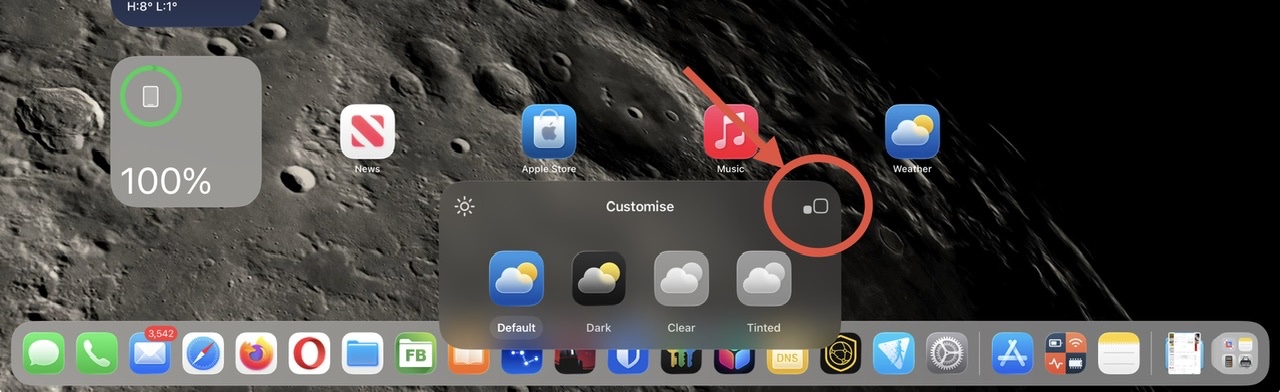
Here you will see the options to customise the appearance of your Home screen. Tap the button at top-right of the Customise pallet to switch between the normal and larger Home Screen icons.
Why would the blur be intended to create a glassy, 3D effect????…..that is just nuts!
The glassy 3D effect is the new Liquid Glass UI - this being the core new visual aesthetic of iPadOS 26. iOS/iPadOS 26.1 introduces a setting that subtly charges the appearance of Liquid Glass:
Settings > Display & Brightness > Liquid Glass - select Clear or Tinted
If you are experiencing any visual difficulty with the new Liquid Glass UI, or simply don't like the appearance, there are settings that can significantly improve the appearance and suppress the majority of unwanted effects.
- Settings > Accessibility > [Vision] Display & Text Size > Reduce Transparency - set to ON
- Settings > Accessibility > [Vision] Display & Text Size > Increase Contrast - set to ON
- Settings > Accessibility > [Motion] Reduce Motion - set to ON
Each if these settings can be used individually, or in combination. Setting Reduce Transparency alone (1) will suppress the majority of any transparency issues that you may encounter. The Reduce Motion setting (3), if used, will eliminate the "lensing" effects of the Liquid Glass UI. Experiment; you should find a combination that works for you.
To revert to the largely conventional appearance which you are largely familiar, I suggest that you begin with setting Reduce Transparency to ON - and then, if needed, experiment with additional use of one or more of the other options.
NB: The new Display & Brightness > Liquid Glass setting can only be changed/toggled while Reduce Transparency is set to OFF. You might find that setting Liquid Glass to Clear, prior to enabling Reduced Transparency to ON, may give the best result.
Liquid Glass will likely evolve throughout the lifespan of iPadOS 26. Hopefully, Apple will provide additional controls with which to selectively eliminate some aspects of the new UI to better meet the functional and visual needs of the wider user population. Liquid Glass is very "pretty" - but for some is arguably form over function, reducing legibility and usability.
How to I change back to the old update version because this will drive me bat **** crazy in no time!
Apple, what have you done!
Rolling-back to an earlier version of iOS/iPadOS is not possible.
All System Updates are digitally signed by Apple - and can only be installed whilst the digital signatures remain valid. After release of a new iOS/iPadOS version, the immediately preceding version continues to be digitally signed by Apple - however, usually within a few days, Apple will revoke the digital certificate with which the earlier version is signed, preventing re-installation of the earlier version.
By aware that restoring an earlier version, while the opportunity exists, entails complete reset and erasure of the iPad. Any iCloud or iTunes backup created or updated by iPadOS 26.x cannot be restored to an earlier version of iPadOS.