Okay, running through everything again, it's actually much easier than it used to be.
Starting with a step back, I need to clarify this statement: You need to boot into Recovery Mode and explicitly grant permission with your admin password for an external device to be bootable.
This isn't necessary. That old thought came from when I had booted to an external drive and literally wiped the internal SSD on the M2 Pro mini. I had to go into Options (Recovery Mode) and make the external drive pre-boot device so I could prep the internal drive to accept a reinstall of the OS. After all that was done, I once again set the internal drive as the pre-boot device. Lesson there is, don't do that. 🙂
Per this image:
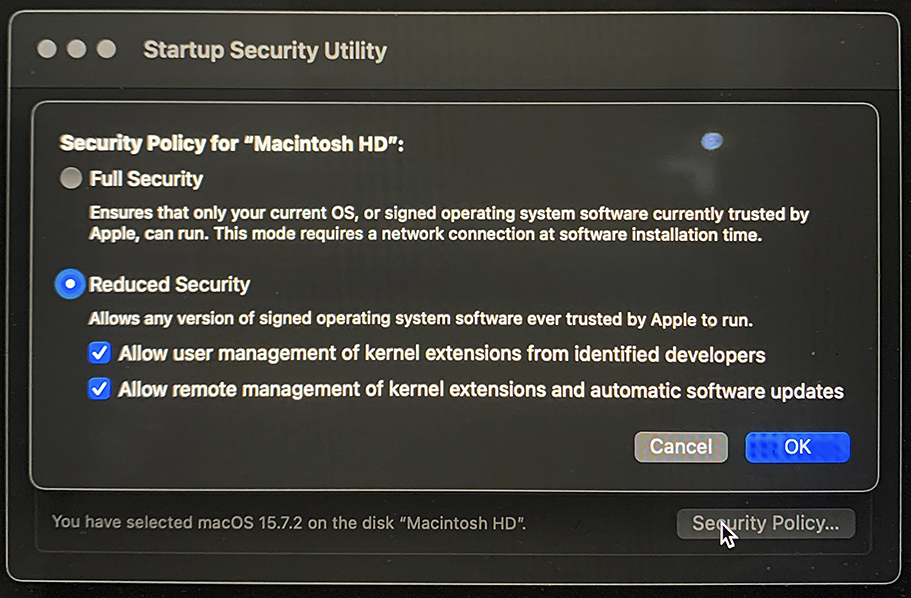
Don't do that, either. It opens up your Mac to possible external exploits, and doesn't help with what you're trying to do anyway. Put it back to Full Security.
You have a fault with your initial attempt, which I didn't notice the first time. What you did was turn your external drive into an installer, not a bootable OS. Don't know why, but while the Mac will boot to a thumb/flash drive like that, it won't to an external drive. But I also must add I can't be 100% sure on that. It's another one of those, "I haven't tried that again for a long time."
I simply created a new volume on my OWC external drive (named it Tahoe Boot) and launched the Tahoma installer from my main startup volume. The install finished in about 15-20 minutes and as expected, booted to the external when it was done. I didn't need to do anything special to make that happen.
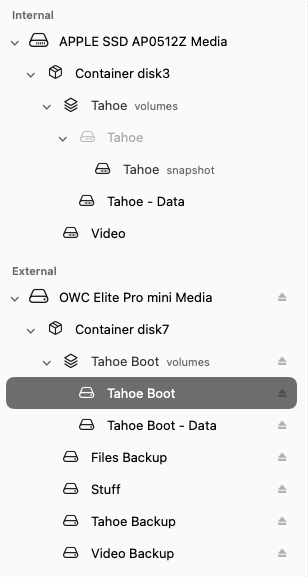
Both installs of Tahoe are selectable on a cold power button startup, or in the System Settings to choose either one as the startup disk.
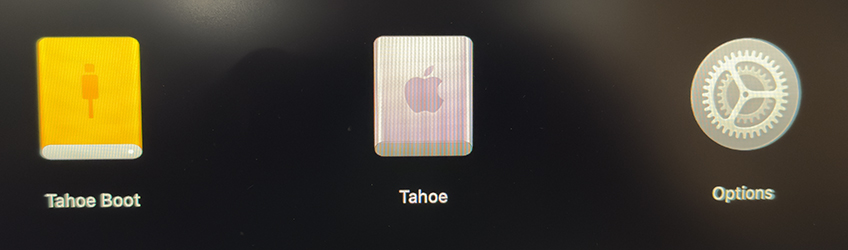
Because I (temporarily) have two physical, bootable drives, when I go into Options and login with my admin account, I first see this under Startup Security Utility:
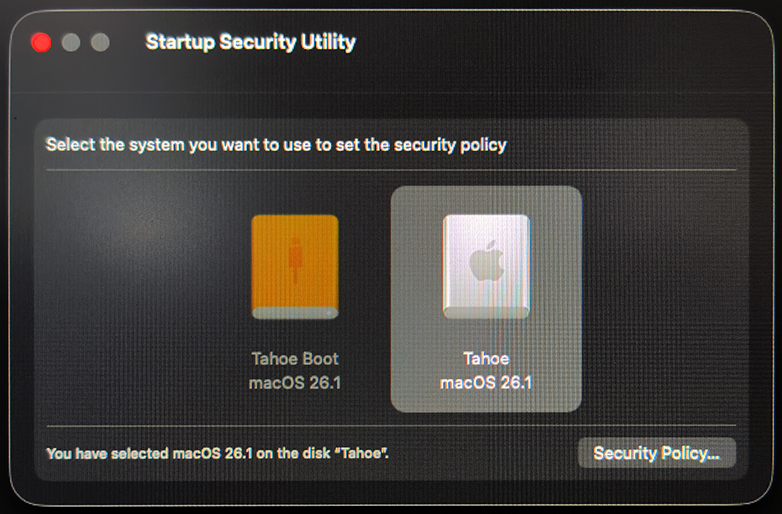
The internal drive is still the pre-boot volume (automatically selected), but the firmware is giving me the option to change it to the external drive, if I wanted to do that. Since I didn't, I clicked Security Policy, which then goes to screen where you can choose Full or Reduced Security.
Some extra reading that explains this well. Fellow forum member, HWTech, is quite the whiz at this stuff.
Is it possible to boot a Sonoma MacBook A… - Apple Community
The most notable part, relative to this discussion is this:
In fact the internal SSD of an M-series Mac will always have the preboot files for the highest OS that is installed on the system (internal or external....those preboot files are shared).
If anything happens to those internal preboot files or the internal SSD fails, then you will not be booting an M-series Mac at all. Those preboot files on the internal SSD of an M-series Mac used to be within the system firmware on the Intel Macs.
Anyway! What I would do is do a cold startup to the Options firmware, login, and use Disk Utility to erase the external SanDisk drive. Then quit Disk Utility to get back to the options screen. Then choose to install the OS. Make sure to select the external drive so you do not write anything to the internal !!!
If you can't select the SanDisk drive from the Options screen, STOP! Go back to your wife's Mac and make a bootable flash/thumb drive with Sequoia on it. Bring that completed flash drive over to your Mac, plug it in and do another cold start so you can select it as the startup drive. This should work. Then proceed with installing Sequoia on the SanDisk external drive.