First, And how is your external drive formatted? To avoid damaging the Photos Library an external drive must be formatted in either APFS format or Mac OS Extended (Journaled) format. The drive must be connected directly to the Mac by cable, not networked, clouded, NASed, etc. Additionally, the drive can not have had Time Machine on it since it was formatted. You didn't tell us what OS you are using, but there have been so many problems with using incompatible drives that the newest macOSs won't even allow a Library on a non-Mac formatted drive to open, since there is a chance of damaging the Photos database. See this:
Move your Photos library to save space on your Mac - Apple Support
If this drive is in a an incompatible format, stop running Photos with it immediately! A Photos Library can sit on an incompatible drive, but running it may corrupt the database.
Now, there's move and there's merge. I'm not quite sure which you're asking about.
You can move a Library to another folder or another drive just by grabbing it and dragging it there. Dragging to a new drive gives you two copies, since the original is left in its place.
To use the new Library with iCloud and other apps you will need to designate it as the System Library. The System Library is set in Photos' Settings>General:

As to merging, you didn't say how extensive the Libraries are. If you just want to add the pictures of one Library to another, then here's one merging suggestion: In your System Library choose the menu File>Import, and select the other Library, then "Review for Import." Photos will tell you that some pictures are already in the Library.
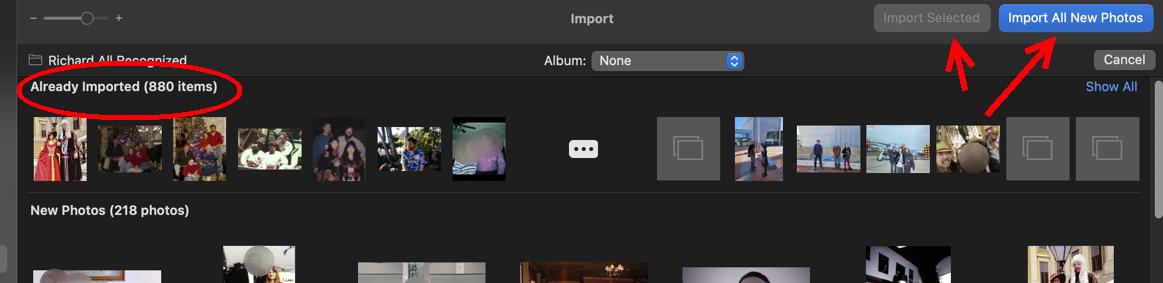
Then you can go through and select among the new ones, or just Import All New Photos. Super easy! Pictures that look the same but have different filenames or different resolutions may get through the filter, so you can get those later with Photos' built-in duplicate finder.
If you've done lots of organizing of pictures into albums and folders, then you lose that organization-- the import process only gets pictures, not albums. If Albums and Folders are important, then the best merge system is the trusted 3rd party app PowerPhotos ($40) which will merge Libraries preserving the organization. PowerPhotos is useful for all sorts of things for people with extensive Libraries or who have multiple Libraries.
You didn't say if you're using iCloud Photos, but if so, then that's another way to merge Libraries with their organizing albums and such. You first make one the System Library, wait for it to transfer all its stuff to iCloud, and then set the other Library as the System Library, and do the same.
Will some of this work for you?