Sequoia 15.4 update made usb drives read only

Since I updated my MacBookPro to Sequoia 15.4

1- my usb portable drives have become locked on read only and it is impossible to change to read and write. The disk utility app says they cannot be fixed.

2- .dng's images (raw from iPhones have turned black on the computer screen

MacBook Pro 16″, macOS 15.4

Posted on Apr 4, 2025 4:13 PM

Reply
Question marked as Top-ranking reply

Posted on May 9, 2025 8:39 PM

Then I would recommend running DriveDx (free trial period) as suggest by some of the others to check the health of that drive. Post the complete DriveDx text report here using the "Additional Text" icon which looks like a piece of paper on the forum editing toolbar. You will need to install a special USB driver in order to access the health information on the external drive. Even new drives can be bad.


I know a couple of people have reported resolving recent external drive issues by connecting the drive to a USB3 hub instead of connecting the drive directly to the computer. I would also recommend disconnecting all other external devices while troubleshooting just in case one of them is causing a problem.


Also make sure to try using a different high quality USB-C USB3/4 cable (or Thunderbolt 3/4) cable from a well respected manufacturer. Many people resolve external drive issues by using higher quality cables from respected manufacturers. Same thing goes if you need to use any adapters. The cables supplied by the drive manufacturers are usually of poor quality.


And of course try each other USB-C port on the Mac.


23 replies
Question marked as Top-ranking reply

May 9, 2025 8:39 PM in response to jameefromspringfield

Then I would recommend running DriveDx (free trial period) as suggest by some of the others to check the health of that drive. Post the complete DriveDx text report here using the "Additional Text" icon which looks like a piece of paper on the forum editing toolbar. You will need to install a special USB driver in order to access the health information on the external drive. Even new drives can be bad.


I know a couple of people have reported resolving recent external drive issues by connecting the drive to a USB3 hub instead of connecting the drive directly to the computer. I would also recommend disconnecting all other external devices while troubleshooting just in case one of them is causing a problem.


Also make sure to try using a different high quality USB-C USB3/4 cable (or Thunderbolt 3/4) cable from a well respected manufacturer. Many people resolve external drive issues by using higher quality cables from respected manufacturers. Same thing goes if you need to use any adapters. The cables supplied by the drive manufacturers are usually of poor quality.


And of course try each other USB-C port on the Mac.


May 9, 2025 7:32 PM in response to jameefromspringfield

jameefromspringfield wrote:

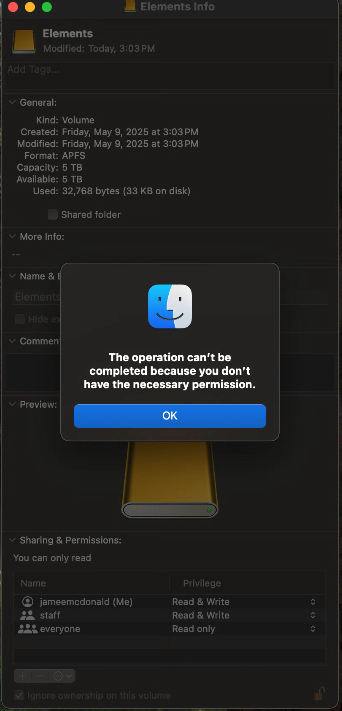
This is the error I get when I unmount the disk and attempt to erase and format as APFS:

Erase the whole physical drive instead of just the current volume. This will recreate the partition table on the drive and create a clean APFS Container & volume as well. See this Apple article for details since Disk Utility now hides the physical drives from view by default.

Erase and reformat a storage device in Disk Utility on Mac - Apple Support


This is what everyone should do the first time they use any new external drive. Many times the partition table & formatting from the factory can be problematic & may contain things that can cause problems with some systems. Plus these days there are so many fake drives out there, that erasing the drive like this may reveal the fake right away.


Apr 4, 2025 5:39 PM in response to Nekocafe

Almost all drives come formatted for Windows. They bundle software that allows macOS to write to the drive. The software is often garbage and breaks at every macOS update.

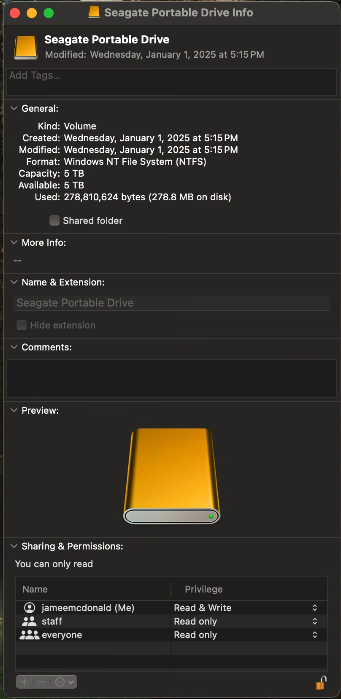
In Finder, Get Info on the drive. Next to Format if it says NTFS, contact the manufacturer for updated software. Or, better yet, copy the data to another drive, then format the drive APFS IN Disk Utility.

Erase and reformat a storage device in Disk Utility on Mac - Apple Support

Apr 30, 2025 9:35 AM in response to Swaby9

You need to update the proprietary third party software that you are using to manage these external drives. If that does not work, then you need to contact the manufacturers of those drives (or the proprietary software you are using to manage the drives) for assistance.


Otherwise, follow @Barney-15E's advice and use one of three macOS built-in file systems (APFS, HFS+, exFAT).....which one depends on the drives and what other systems need access to those drives.


May 9, 2025 6:23 PM in response to jameefromspringfield

jameefromspringfield wrote:

My drive is formatted in APFS according to my revised screen capture and it’s still read only. Has been APFS for at least a year and a half.


Yeah, i was viewing the thread and saw your posting showing NTFS, and didn’t see the reversal.


Use DriveDx to see if there are any errors, and if there are any errors shown, replace it.


If no errors are shown, offload the APFS volume, reformat it as APFS, and reload it.


Apr 30, 2025 11:25 AM in response to tbirdvet

Don't think so. I have been using the WD Passport for Mac since iMac was purchased (M1 chip). Can't see why 2 days ago backing up ok and then did update and now won't back up as 'says disk read only' I checked the permission: as below. not sure what wheel means- guessing system is me. It's odd my other WD passport for Mac has my name as opposed to system. Thanks though

May 9, 2025 3:32 PM in response to tbirdvet

This issue happened to me too. I've had my external drive plugged into my M2 Mac mini for a while now. Two days ago, when copying items to the drive I get an read only message. I remote into the Mac and there's a toast notification at the top that says the drive was not ejected properly. I hadn't remoted into the mini in about six months.


When I look at the Get Info on the drive it now says "You can only read" and I'm unable to create files or folders or copy anything to it. When I try to change permissions on any of the accounts I get a message that the operation failed and that I do not have sufficient privileges. My account is administrator.


I purchased a new drive and formatted it in APFS and it shows the same thing. I know the drives aren't bad because I can format them into NTFS and copy, delete and move files on and off these drives in Windows without an issue.


All of this despite my drives being formatted in APFS. I've never used NTFS or any other format. So now I'm kind of stuck and don't know how to proceed. I've been through every permutation of troubleshooting I can try and nothing works. I've done too much to recount it all but it's been quite frustrating.


The screen captures say the drive was modified January 1 2025 but that's not true. I just reformatted today, May 9th, 2025.


This thread has been closed by the system or the community team. You may vote for any posts you find helpful, or search the Community for additional answers.

Sequoia 15.4 update made usb drives read only

Welcome to Apple Support Community
A forum where Apple customers help each other with their products. Get started with your Apple Account.