You are massively over-complicating your spreadsheet by trying to get it to do something it is not designed to do.
While what you ask for sounds simple, it isn't the way Numbers is designed - you cannot push values, formatting, etc. into other cells, and you have to jump through extra hoops to make it work.
I strongly agree with SGIII' suggestion to reformat the data into something more spreadsheet-friendly, maying using filters or pivot tables to summarize the data.
If that's not an option, at least consider a tweak to your layout that will make the whole thing easier.
Your current design is keyed off the first column being either SALE or PURCHASE. You're then trying to guide the user to enter values in relevant fields by highlighting (or de-highlighing) the fields in question.
Instead...
What the user cares about (and what's in their head) is four things - a SALE/PURCHASE option, a unit size, price, and a quantity. That is all they should enter and the spreadsheet should do the rest of the work.
For example, based on your sample:
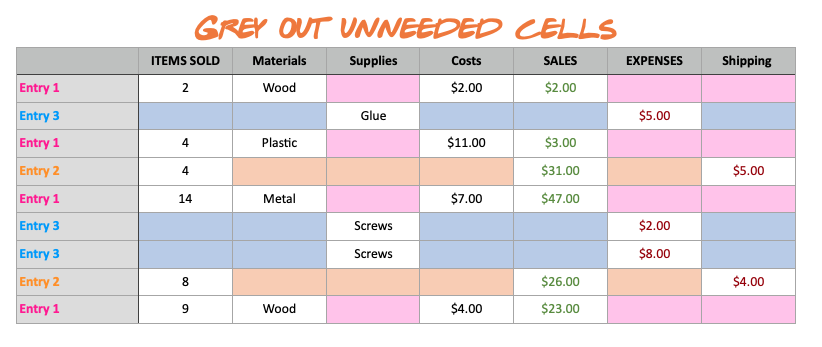
I recreated it with a slight tweak (although your numbers don't make sense, but I'm guessing that's because they're dummy values). I came up with:
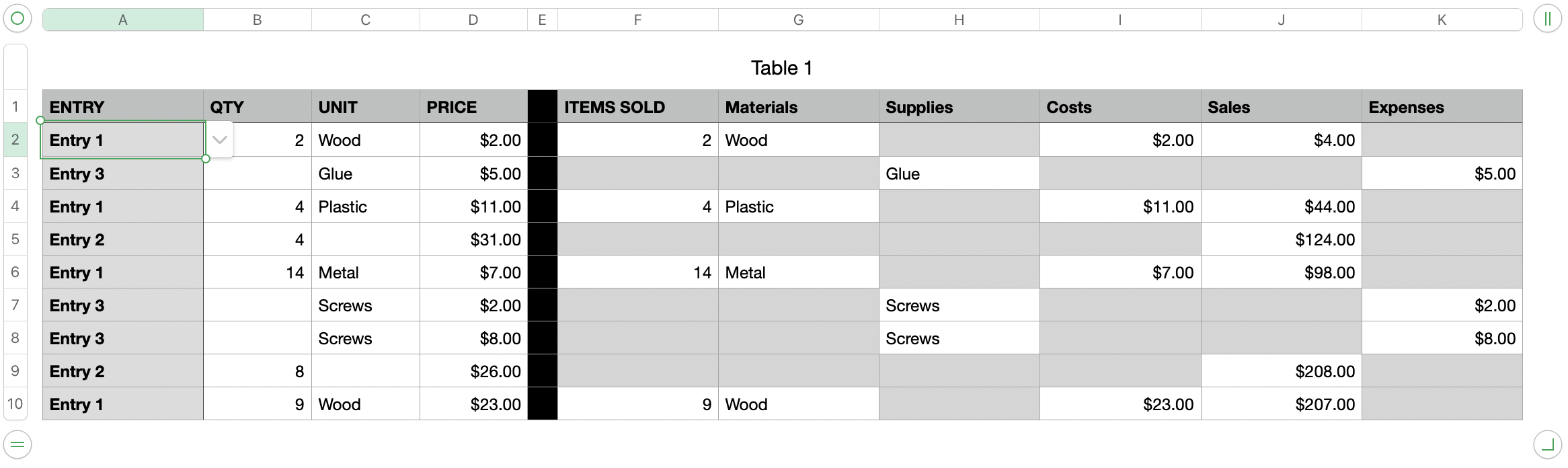
(I skipped Shipping since I couldn't see how that plugged in, but that can be added easily enough once the logic is understood).
The idea here is that the user only enters columns A-D. The rest of the table is filled out automatically based on the values in column A.
There's nothing special about columns A-D, except that column A may be a Pop-up menu with the "Entry' items.
The magic starts in cell E2 (the first 'ITEM SOLD') column. This has a formula:
=IF($A="Entry 1",B)
This says that if the entry in column A is 'Entry 1', then return the value in column B - in other words, copy the Quantity value only if column A says 'Entry 1'.
This will automatically fill in the entire column with corresponding Quantities (or FALSE if column A is not 'Entry 1')
A similar approach is used for the other columns - check $A to and show or hide the corresponding value based on whether it's relevant or not.
Now all you need to to is add one conditional highlight to the entire table (or, at least columns E-K) that hides the values (based on setting the background and text colors the same):
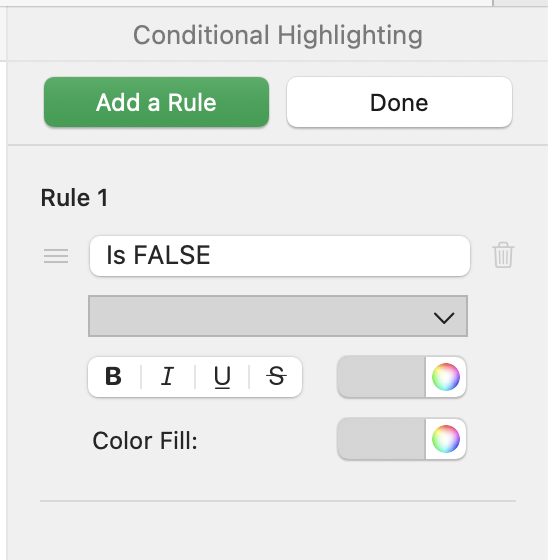
In this way, column A is used as a trigger to determine whether a value should be shown in the corresponding column or not.
Note that columns E-K could be in the same table, or in a separate table. it's mostly a matter of how you want to visualize your data.